Classroom Essentials allows teachers to create lists from an inventory of basic classroom items, without an essay, project submission, or minimum materials cost. Once a list has been published, donors can donate to support a teacher’s list. As teachers receive enough funding for any one item, they can immediately submit an order for that specific item. DonorsChoose sends that order to our vendors, and they’ll prepare your order for shipment.
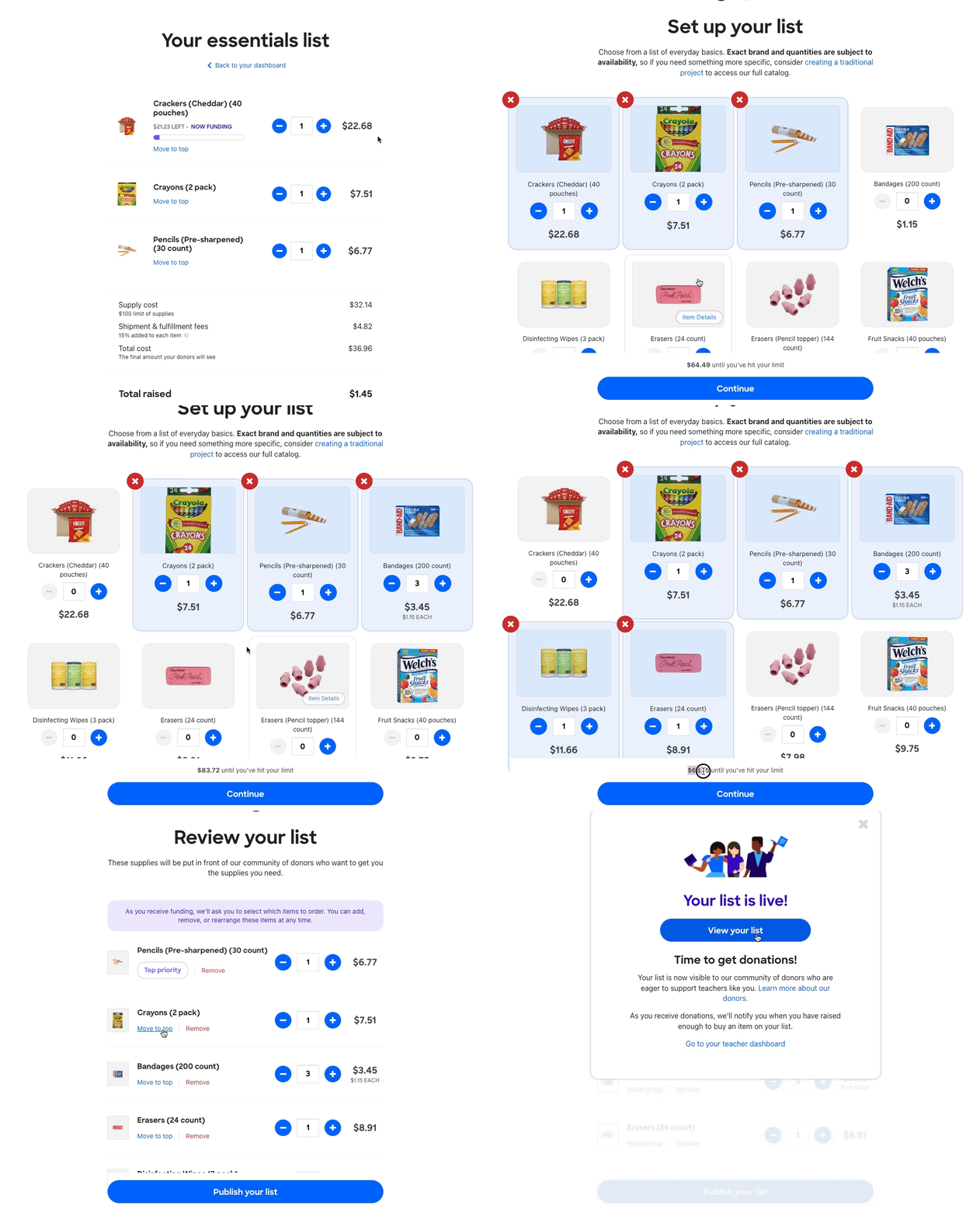
Creating a list
To create your first Classroom Essentials list, you’ll need to register an account and agree to our terms of service and privacy policy.
You can add any amount of eligible items to your list; there is no minimum materials cost. You’ll be able to select additional materials as you receive additional funding. You’ll be able to order your materials by highest priority.
Once your list is published, you’ll be able to adjust the materials and quantity based on what you need, freely adding or removing items, as well as ultimately selecting which materials and how many you would like ordered.
Ordering items
No longer do you need to wait for your entire project to be funded before ordering materials!
Once you have enough funding for any whole line item, then you can order it immediately. After you’ve submitted your order, we’ll get to work processing that shipment with our vendors.
You can spend up to the amount available on your list, or you can spend a partial amount at any time. You do not need to purchase supplies with all available funding at once.
Once an order has been placed, you’ll be unable to change the requested materials. Shipments may take up to 3 weeks to arrive. We’ll let your school know once any items have been shipped and expected arrival date(s) at your school.
If you need tracking information or have questions, you’ll need to contact our team.
Unpublishing a CE List
If you would like to pause/remove your Essentials list, you can unpublish it by following the steps below.
Note: when your list is unpublished, it will remain visible on our site, but it will no longer be able to receive donations. You can still place orders using available funds while your list is unpublished.
- Click on the ‘View list’ button from your teacher home page
- Click on the purple toggle and confirm by clicking the ‘Save changes’ button in the pop-up
- Your list should now show as unpublished. You can republish it at any time following the same steps as above
Frequently Asked Questions
What can I add to my list? ▼
We have a limited inventory of items available for Essentials lists. That inventory includes:
- Bandages
- Crackers (cheddar)
- Crayons
- Disinfecting wipes
- Erasers (standalone and pencil tops)
- Fruit snacks
- Glue sticks
- Highlighters
- Laminating pouches
- Markers (regular and dry erase)
- Paper (color and white)
- Pencils (regular and color)
- Pens (felt tip and ballpoint)
- Play-Doh
- Sticky Notes
- Tissues
Do funds received on a list expire? ▼
All donations received/applied to your list will expire 1 year from the date they were applied. You’ll be sent this expiration date in reminder emails from us, and you’ll see a prompt on the home page of your teacher account when funding is a week away from expiring.
Are there any funding caps for Classroom Essential lists? ▼
Individual teachers/lists have a $50 donation maximum when received from school-level funds. This means if a donor gives more than $50 to a school account, only $50 per teacher will be available to apply to a Classroom Essentials list.
Can I request a specific brand? ▼
To make this set of basic items more consistently available against shifting inventories, we cannot guarantee specific brands. If you’d like to request a specific brand of item, then we recommend creating a traditional classroom project.
Can I change my requested items after I’ve received funding? ▼
Yes! You can adjust or add to your items after you’ve received funding, but prior to confirming and placing an order, as long as your list has enough funding to cover the costs. Once you’ve placed the order, we are unable to make any adjustments.
What happens if I get funding over the summer or while my school is closed for a break? ▼
Please wait to place an order until your school opens or is able to safely receive packages. Once you place an order, items will be shipped immediately, regardless of time of year and due to the speed of processing, our team will not be able to stop your order.
What if I need an item that isn’t included in the Essentials inventory? ▼
If you need an item not available through Classroom Essentials, or if you require a specific brand, please create a traditional project! Through the traditional project route, you’ll have freedom and flexibility to request items beyond our limited Essentials inventory.
Can I return items received from my Essentials list? ▼
Our team is happy to support a return and reorder in circumstances where an item arrives damaged or broken. Due to the nature of the items included in our Essentials inventory, we are not able to support returns due to change of mind or classroom circumstances.
Is this the same as Classroom Basics? ▼
We have periodically had match offers for projects requesting “classroom basics”, which is a category of resources described here. While there are a lot of similarities between the types of resources requested through a Classroom Essentials list and Classroom Basics project, they are not interchangeable. Match offers for Classroom Basic projects do not apply to Classroom Essentials lists unless explicitly stated in the match offer description.
Can I move funds donated to one of my projects to a list, or move funds donated to my list to a project? ▼
Donations cannot be transferred between projects and a Classroom Essentials list.
Can I donate to a list using my own credits or a gift code? ▼
Yes! Please enter the gift code at checkout to apply it as your payment method; credits will be automatically applied if you are logged into your account.
How do I order a different item on my list? ▼
You will only be prompted to place your order when you have enough funding for your topmost item. If you don't have enough funding for your top item, then you won't have the option to order. If you would like to order a different item on your list (for which you do have funding), then move that item to the top of your list and save your new list order. Once your list has been updated, you will have a prompt to order.
How do I remove all the items from my list? ▼
Follow these steps:
- Navigate to your List page, then click "Edit list". This will bring up a new page.
- Click the "Remove" button underneath each item, until they're all removed from your list.
- Click "Publish". Your list will save and no longer be visible because there are no items on the list anymore.